Get up and running with FamilyFin Cloud
Basic concepts to quickly access and work with FamilyFin Cloud — your personal & family finances.
Landing page / Marketing / Authentication
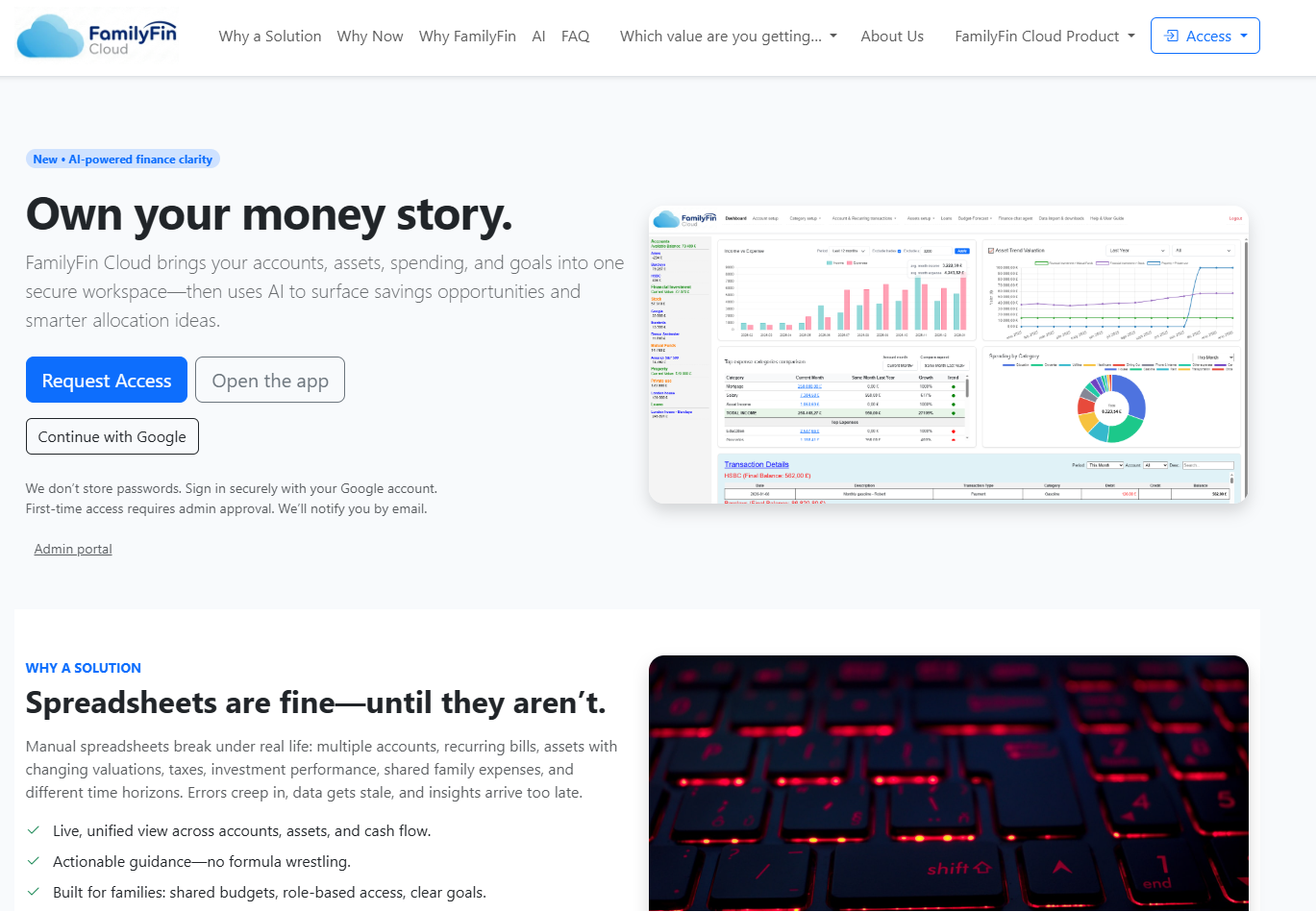
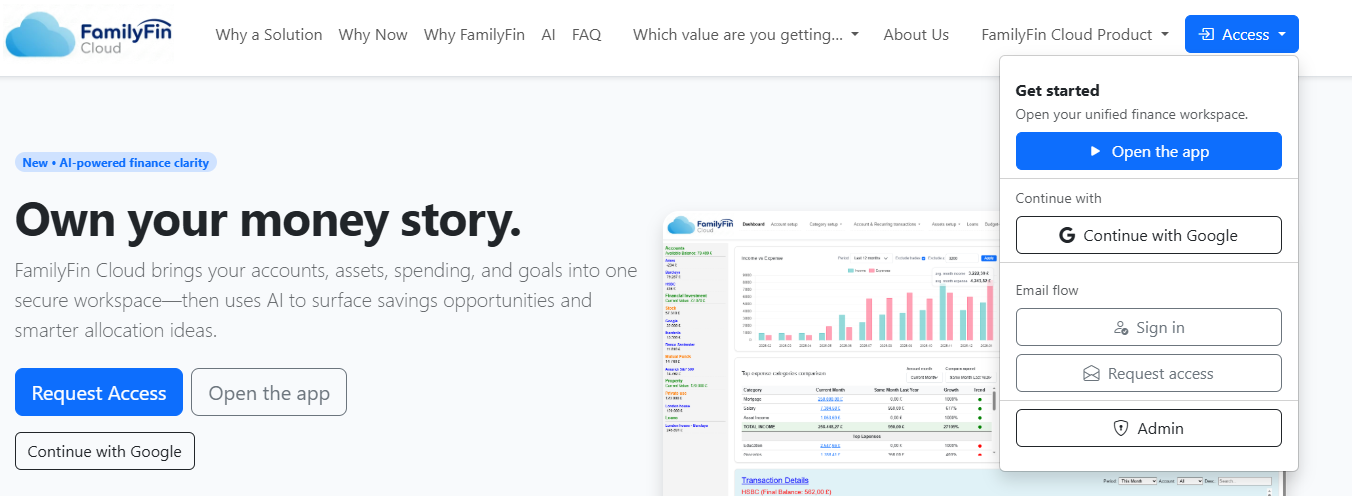
FamilyFin Cloud has two main webs: (1) the public marketing website, where you can learn why you need a personal finance solution, why now is the right time, and how FamilyFin Cloud differs from other solutions; and (2) the private “solution” app where you manage your accounts, assets, loans, budgets and more.
From the public web you can access this Quick Start, request a trial, or request a user for the product.
Main menu & initial screen
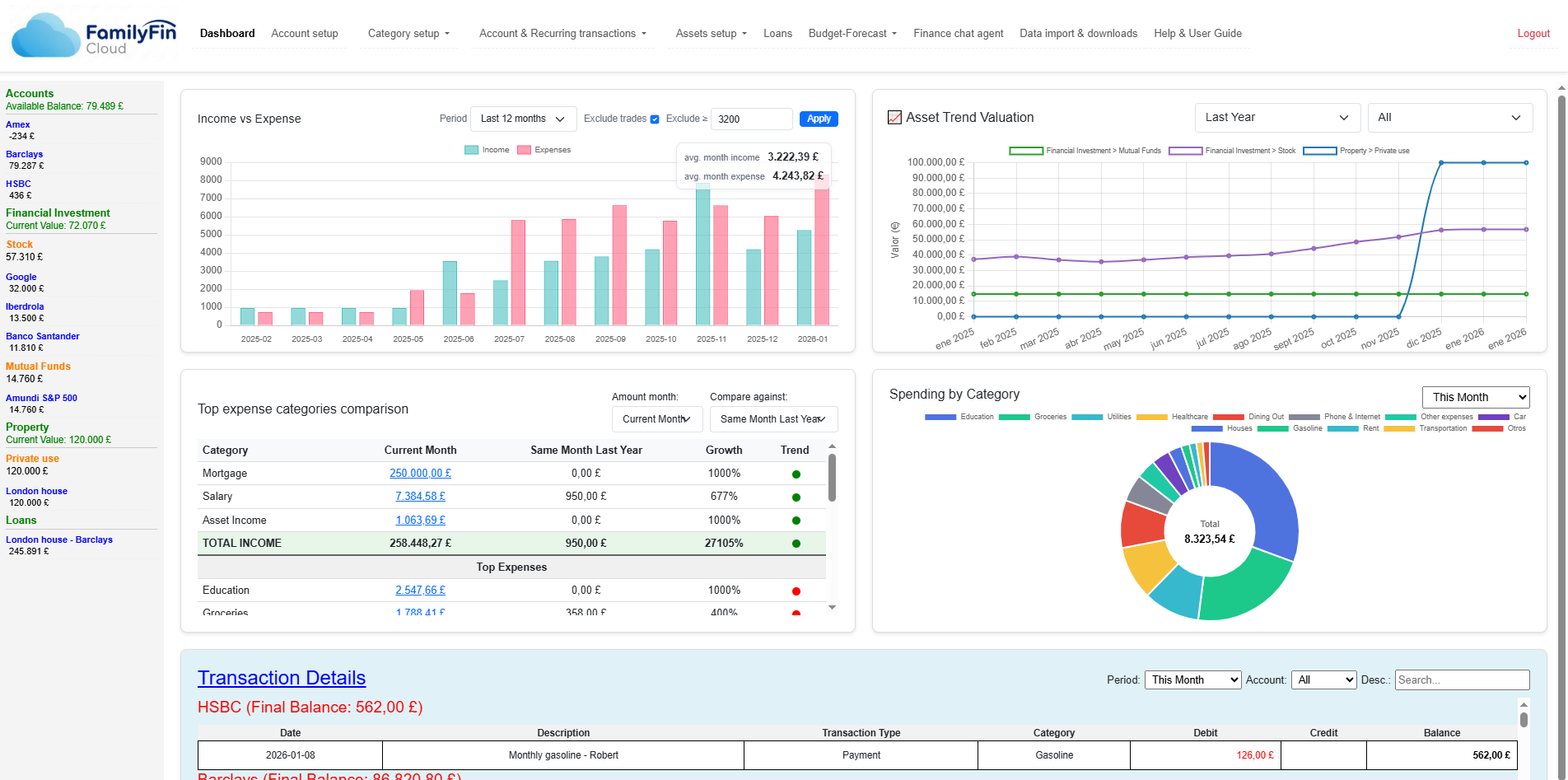
The first time you enter FamilyFin Cloud, the initial screen is empty (waiting for your data). Once you load information, the screen is divided into three areas:
- Top horizontal bar to navigate (accounts, categories, transactions, assets, loans, finance chat, etc.).
- Left vertical bar showing current balances and values (accounts, assets, loans).
- Main area composed of dashboards to give a complete picture of your finances.
Dashboard
The dashboard contains dynamic reports. On the left you see current balances for your accounts and assets; in the main area you see dashboards for income/expense evolution, asset valuation history, current month detail compared to other periods, category breakdowns, and transactions by account across selected periods.
Account setup
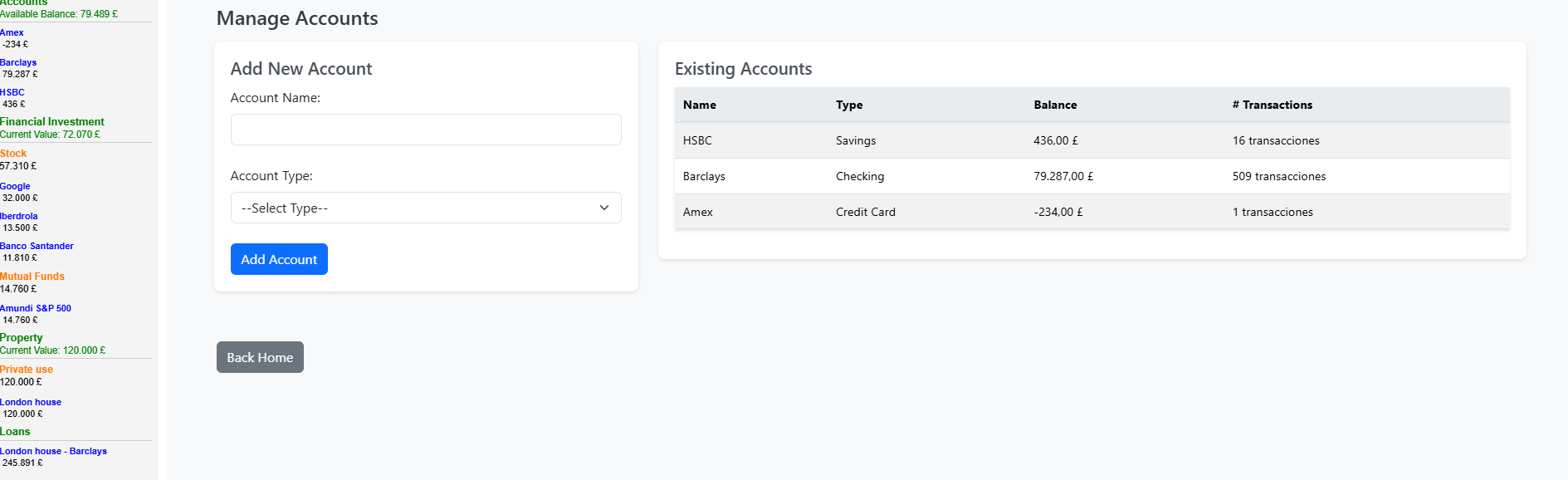
Create your accounts (savings, credit cards, etc.). You only define the name in Add account — FamilyFin Cloud manages the balance through the transactions you record for each account.
Category Setup
This section is crucial: it defines how you want to categorize incomes and expenses. FamilyFin Cloud provides typical category sets used by families — you can select what best fits you.
The only rule: each category must be one of:
- Income
- Expense
- Transfer (moves between accounts; does not impact income/expense/loan)
- Loan
It is convenient to create special categories for Asset expenses (buying assets, fees) and Asset incomes (selling assets, dividends, rent), and a category for transfers between accounts.
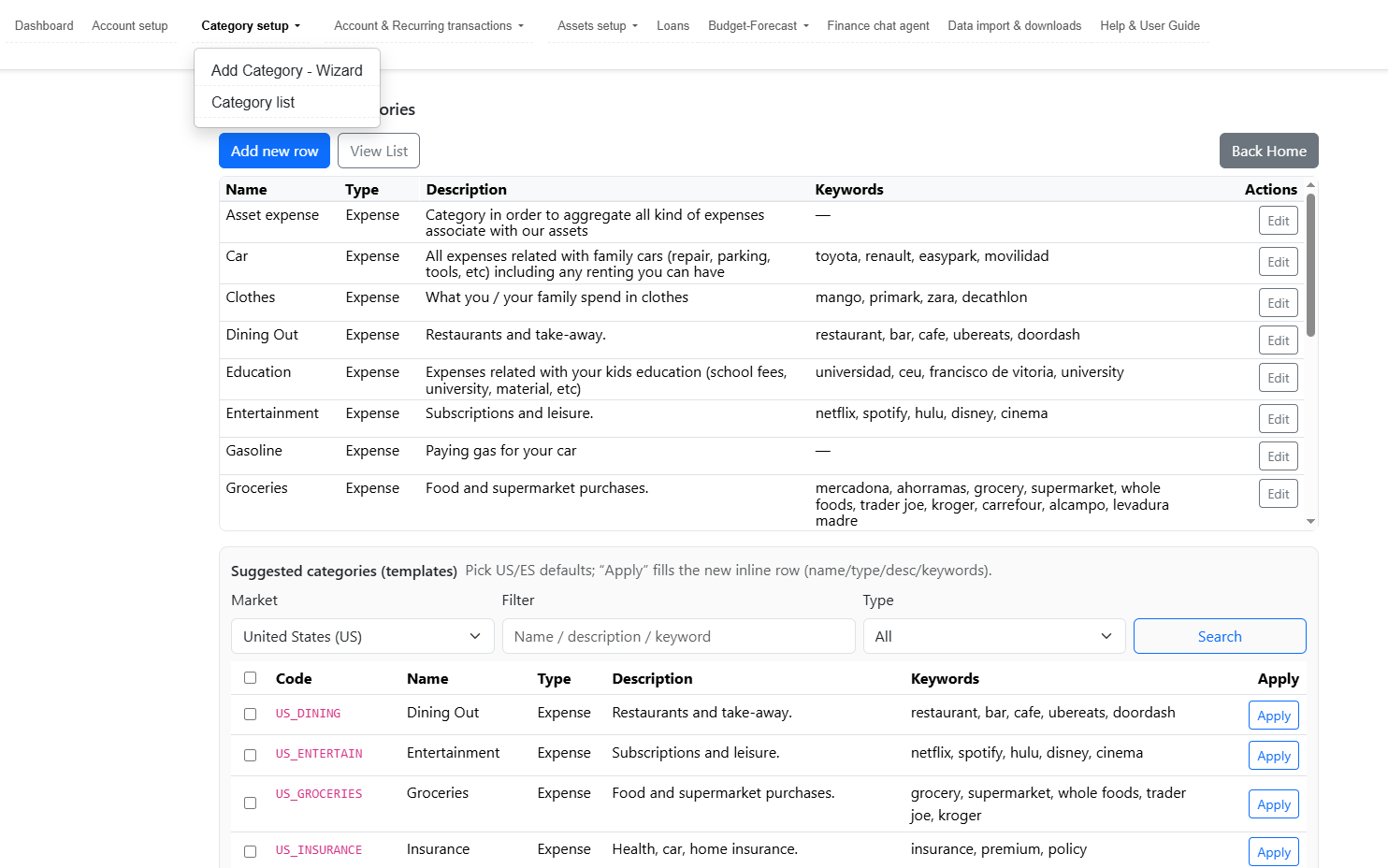
Category wizard
The area where you create and edit categories.
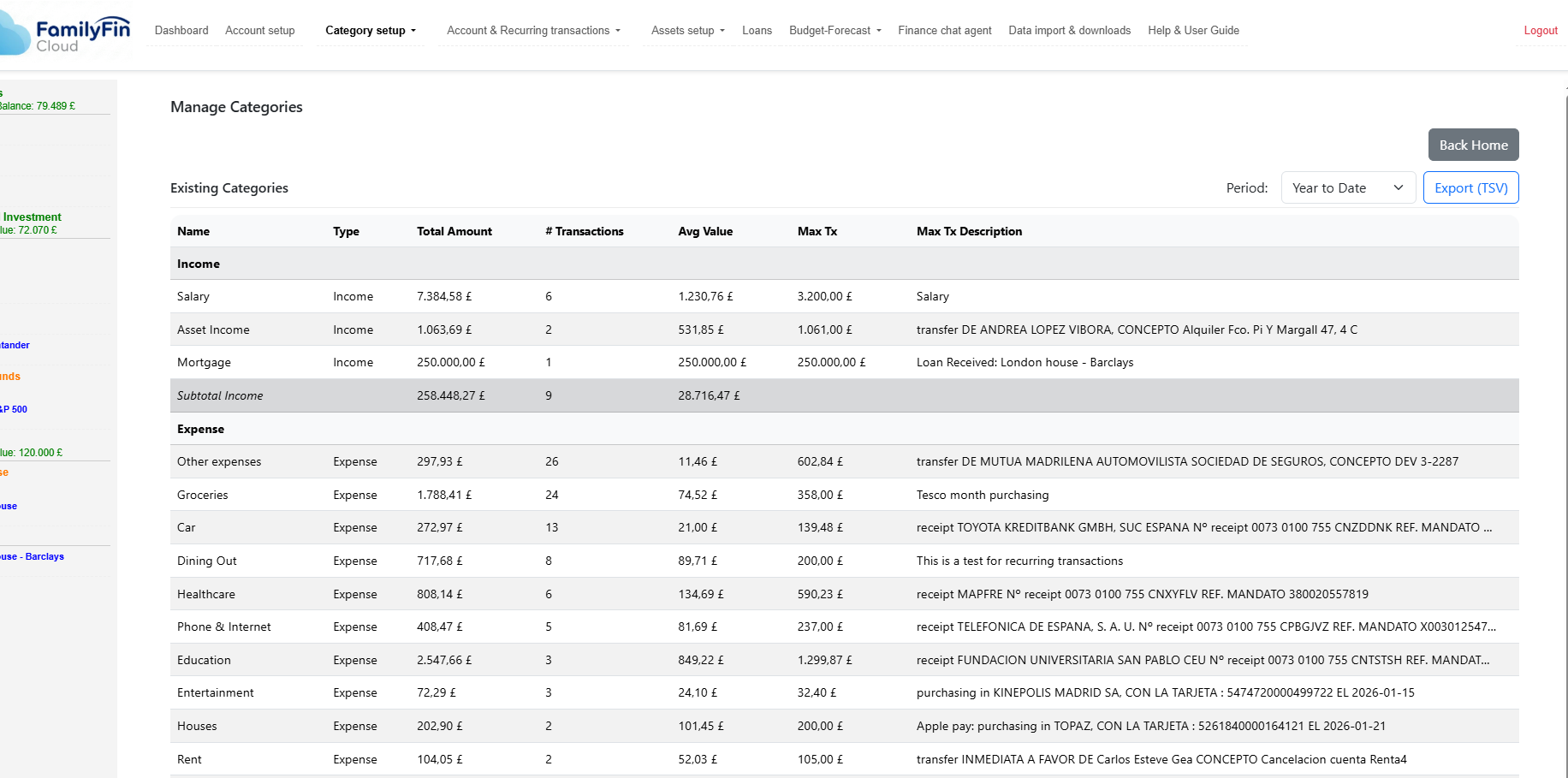
Category list
An overview of the categories you have created, including a report with number of transactions and amounts in a selected period associated with each category.
Account & Recurring transactions
This section covers your bank account transactions and recurring items.
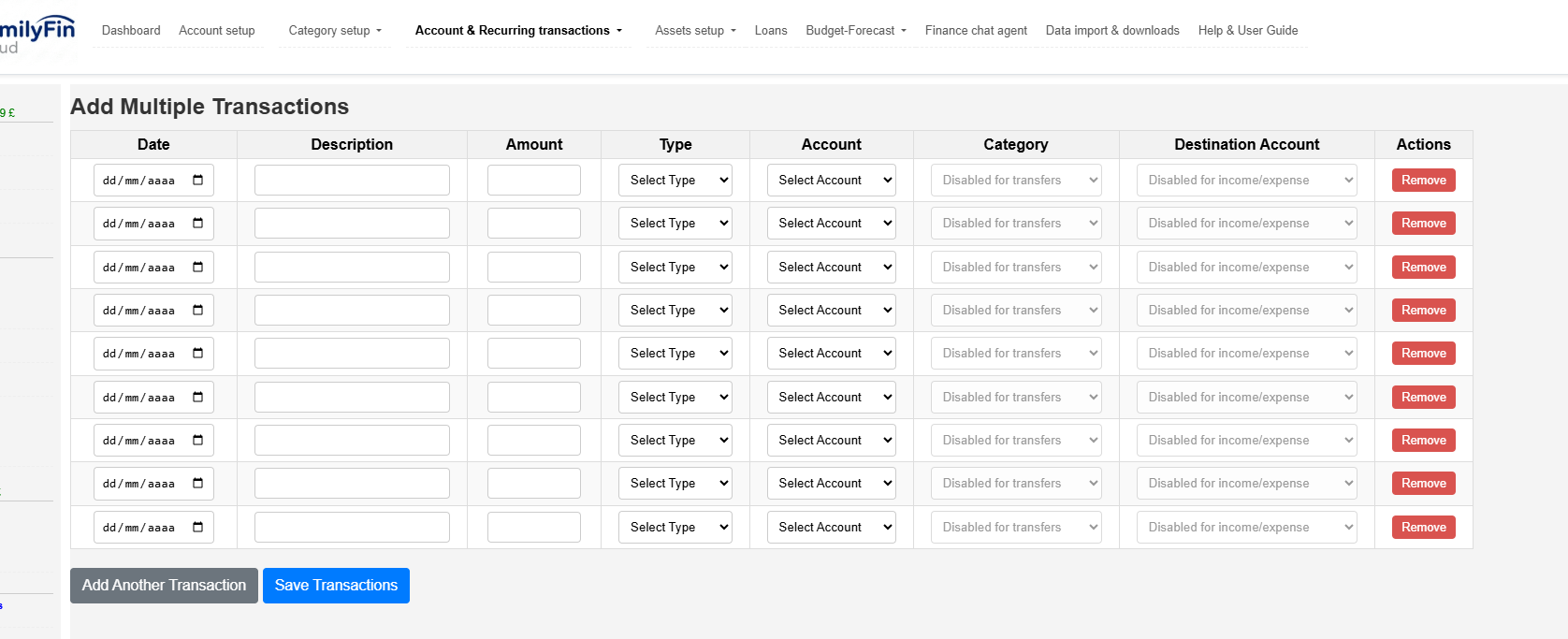
Add bank transaction
Once accounts and categories exist, you can add transactions manually (or import later via CSV).
For each transaction you typically enter:
- Transaction date
- Description
- Amount
- Type: Income, Expense or Transfer
- Category
- Destination account (only for transfers)

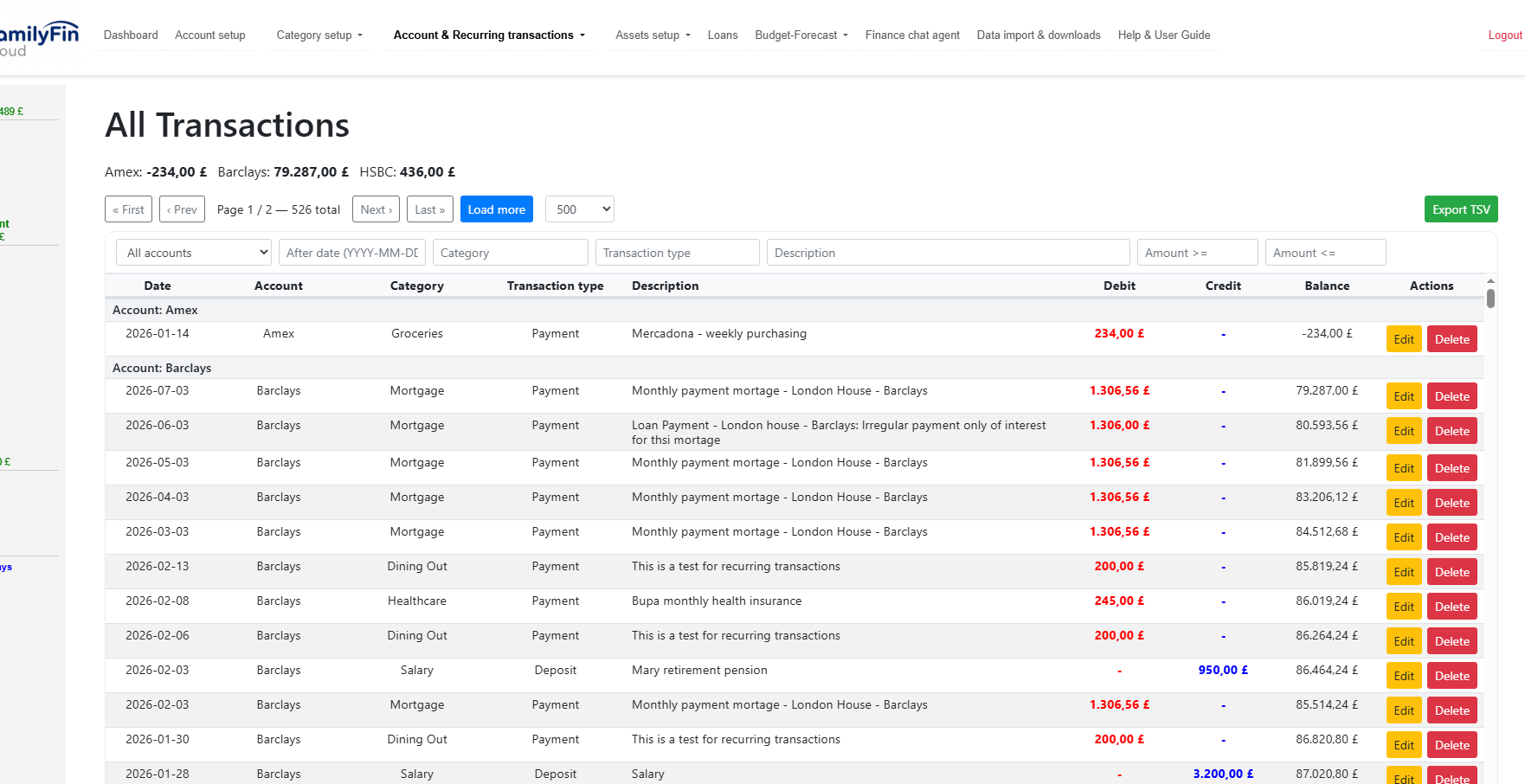
View & edit all transactions
Use the global transaction view to filter, search, and inspect your transactions across accounts and categories.
Edit & delete
You can edit any transaction (date, category, amount, description) or delete it when needed.
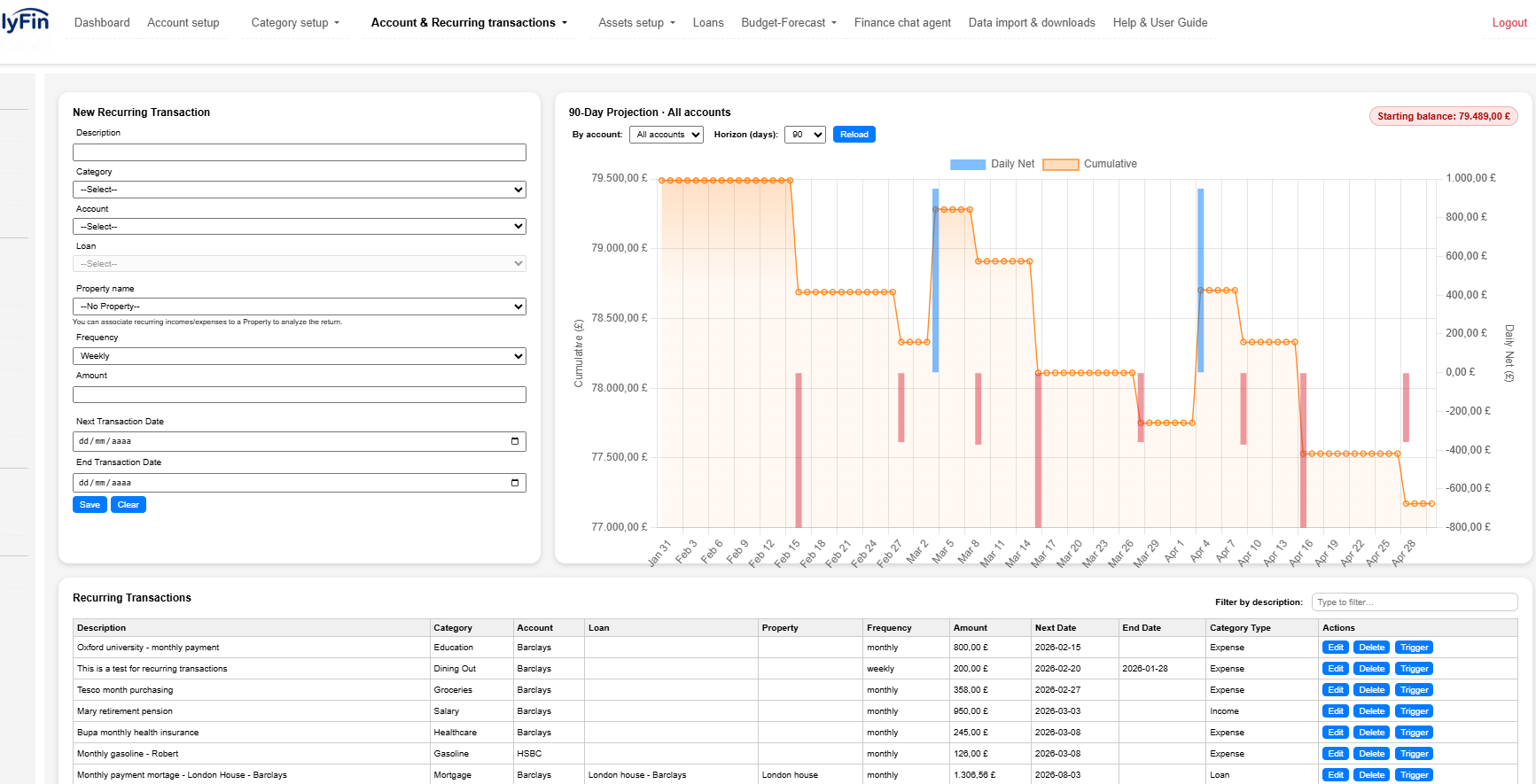
Recurring Bill & Income
In real life, 80–90% of monthly transactions are repeated. Define recurring bills/income once (amount, account, frequency — weekly/monthly/quarterly/yearly — and optional end date). This helps forecast balances and reduces manual work.
Assets setup
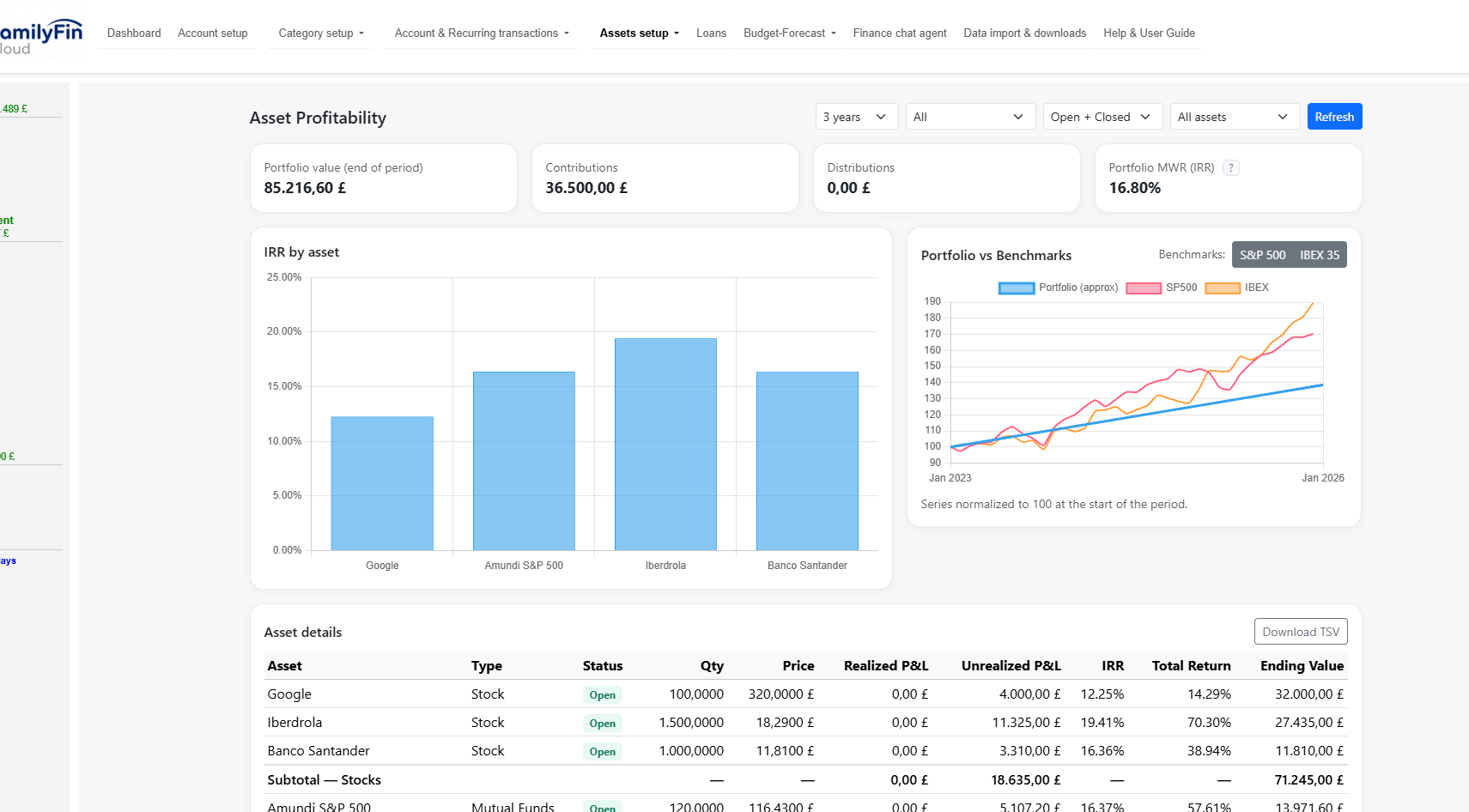
FamilyFin Cloud tracks asset performance and history: valuation, profitability (IRR / realized & unrealized P&L / % return), and benchmarks against indices (e.g., S&P 500, IBEX35).
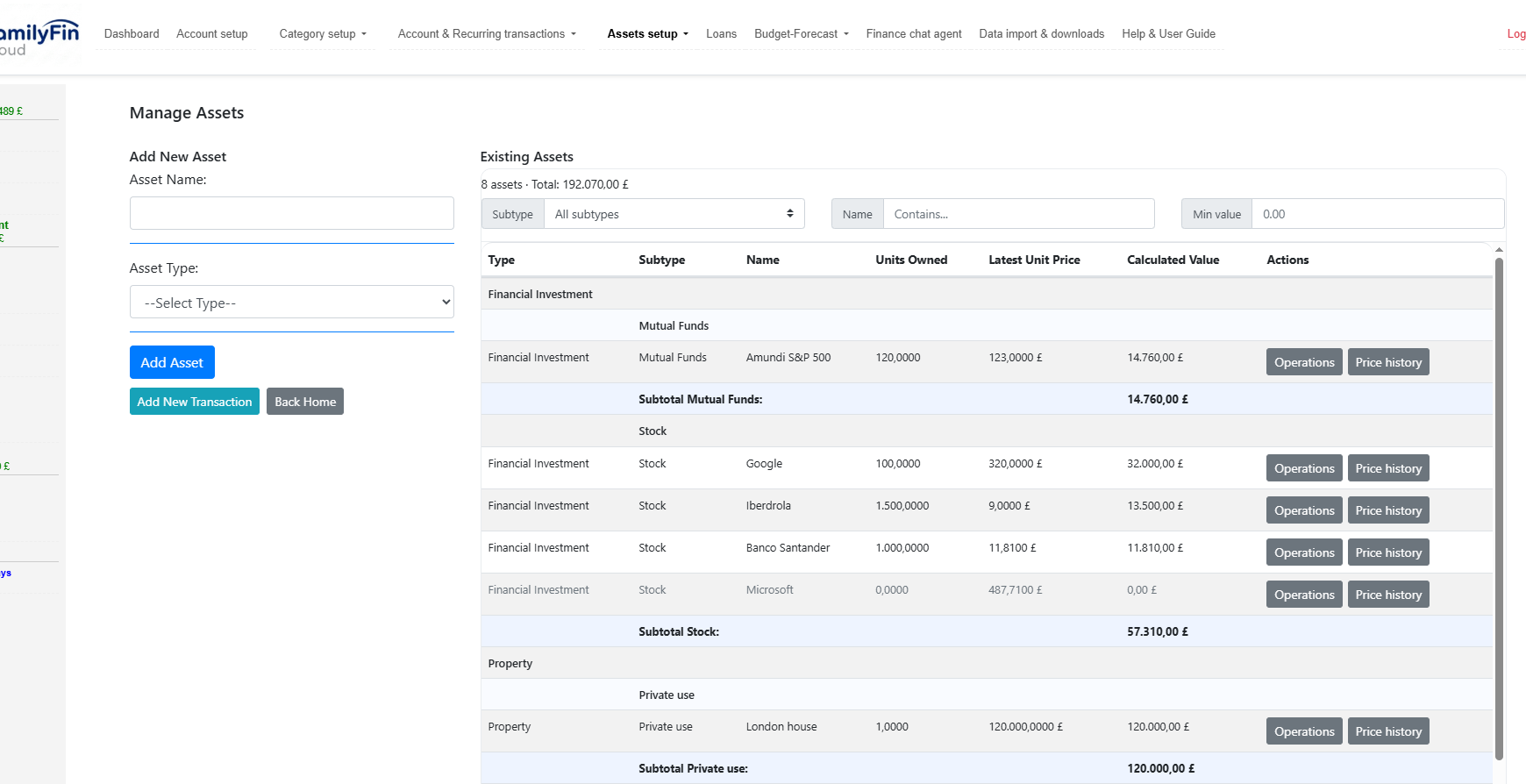
Add asset
When adding an asset, you define name, type/subtype (Stocks, Mutual funds, Bonds, Property, Vehicle, etc.) and optional details.

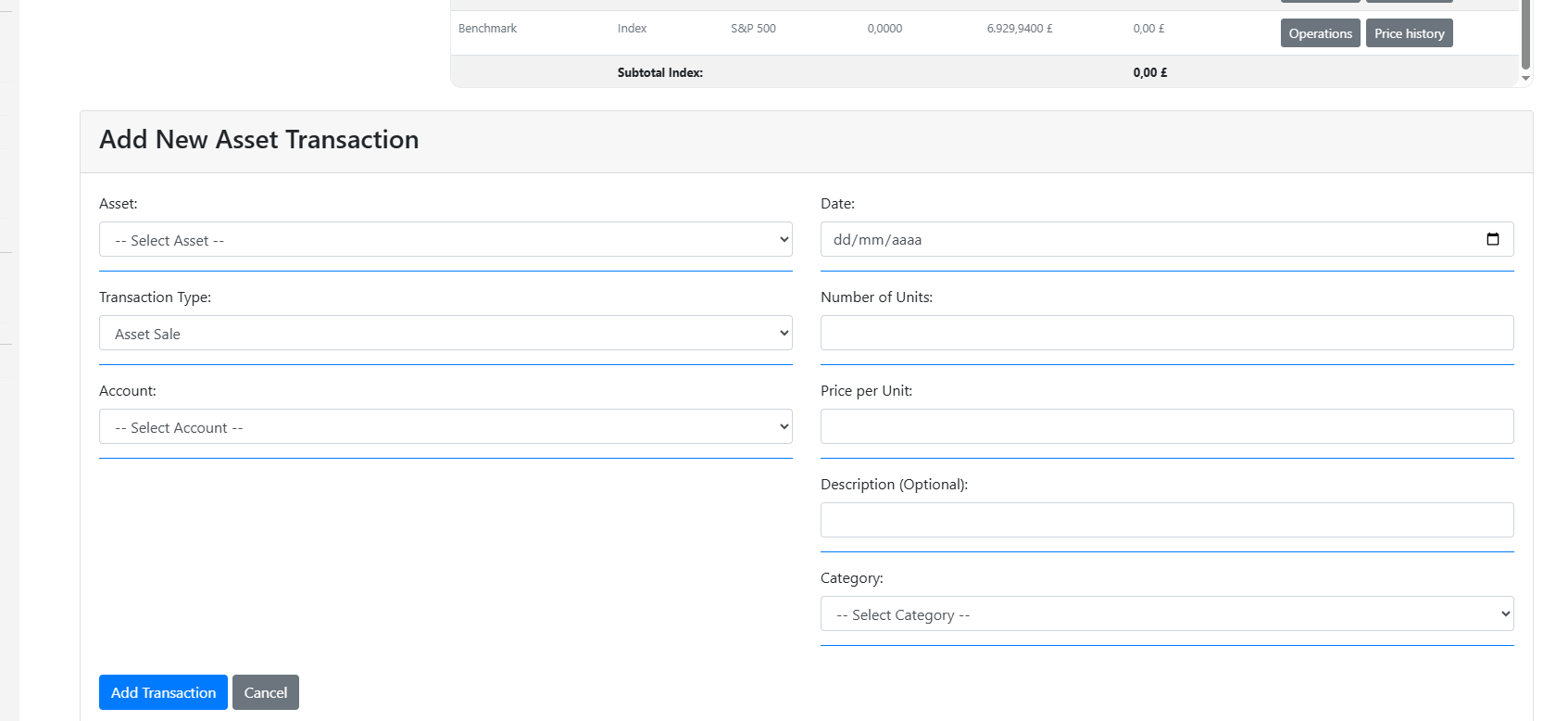
Asset transaction
Record purchases, sales, dividends, interest, asset expenses and other incomes.
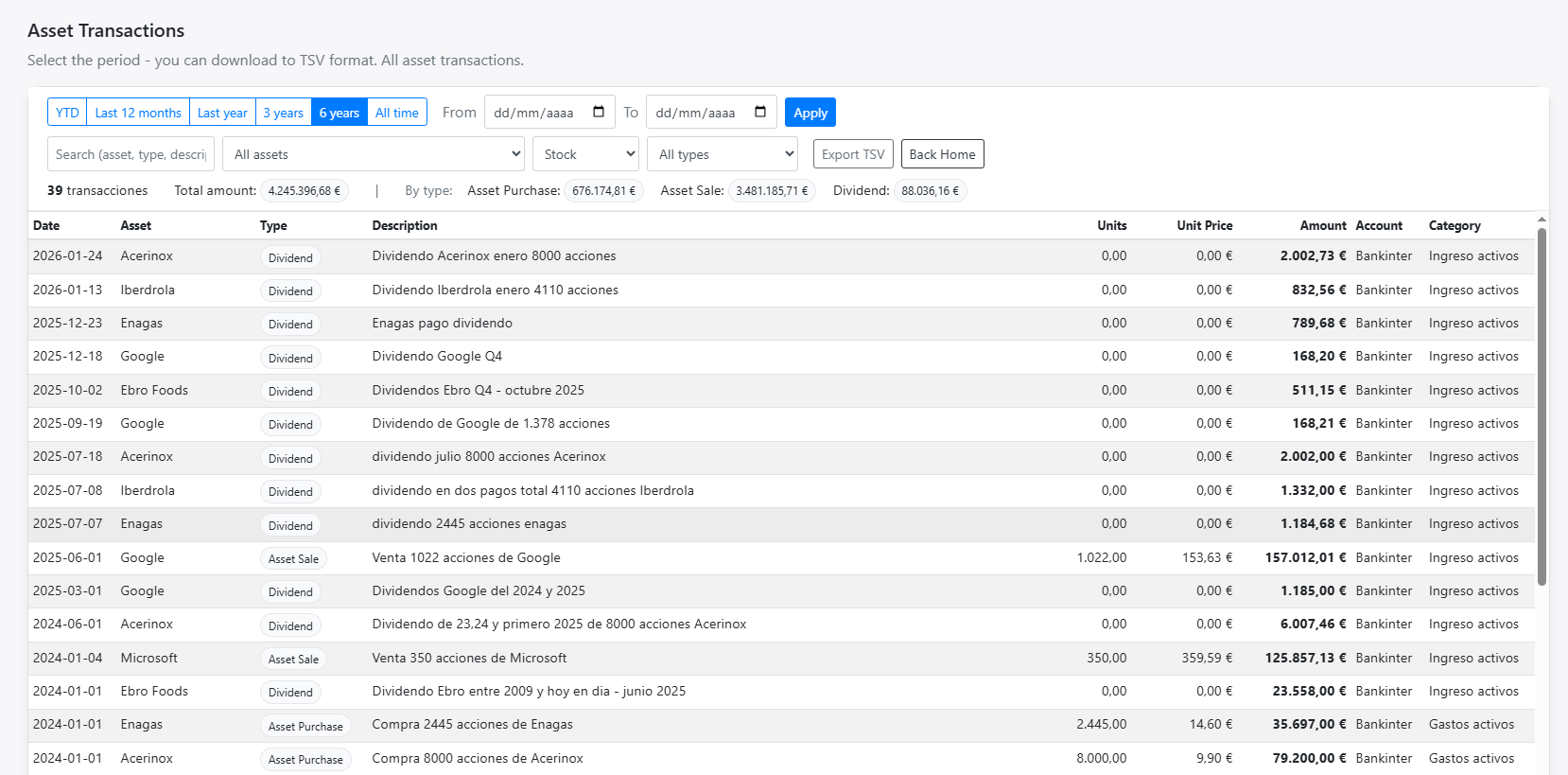
Asset transactions
Review all transactions per asset, and edit/delete operations as needed.
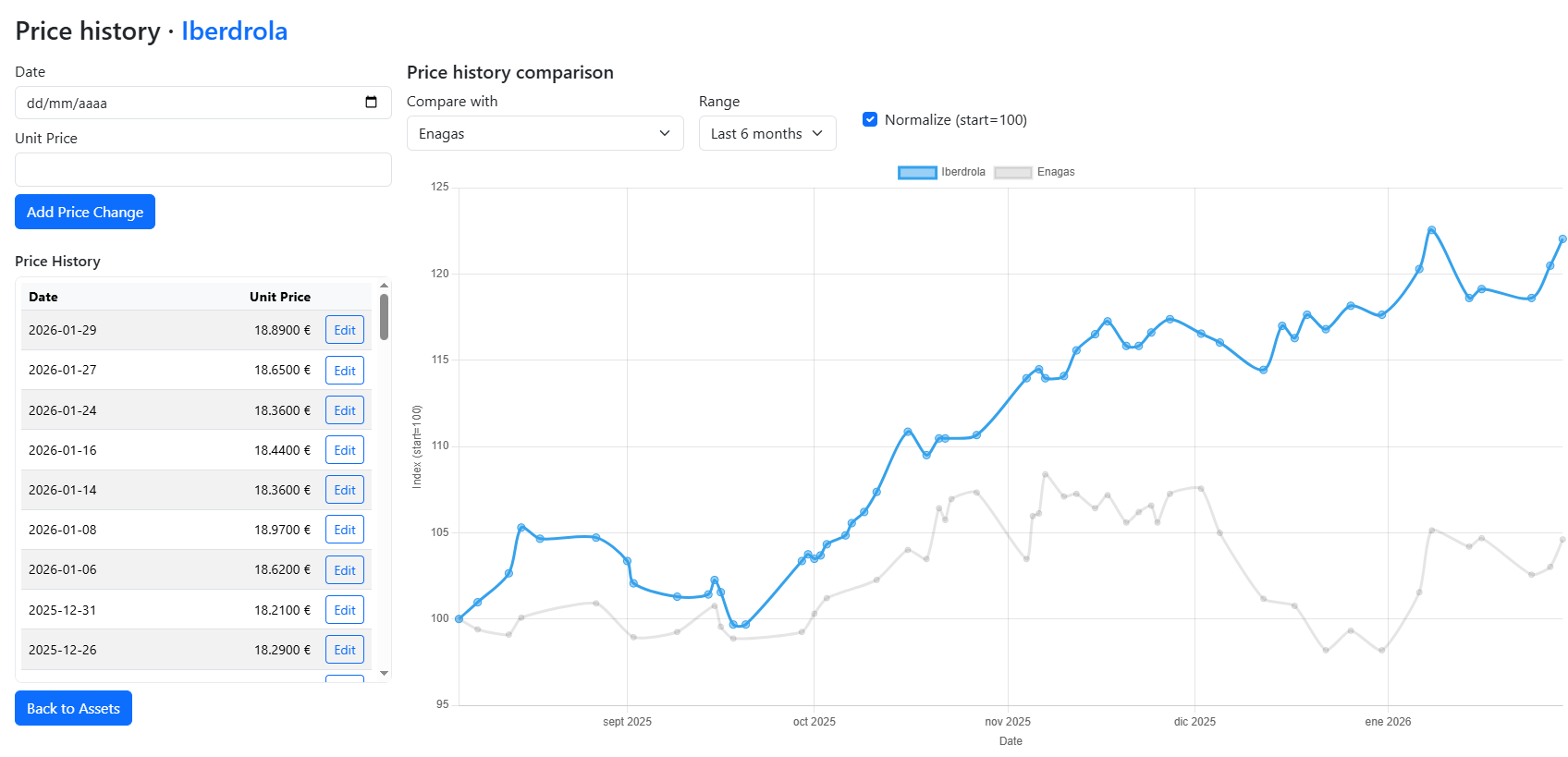
Asset prices history
Review price history per asset, and edit/delete prices and compare with other assets.
Asset performance
See portfolio performance and history: IRR, % return, unrealized P&L by asset, and benchmarks vs indices.
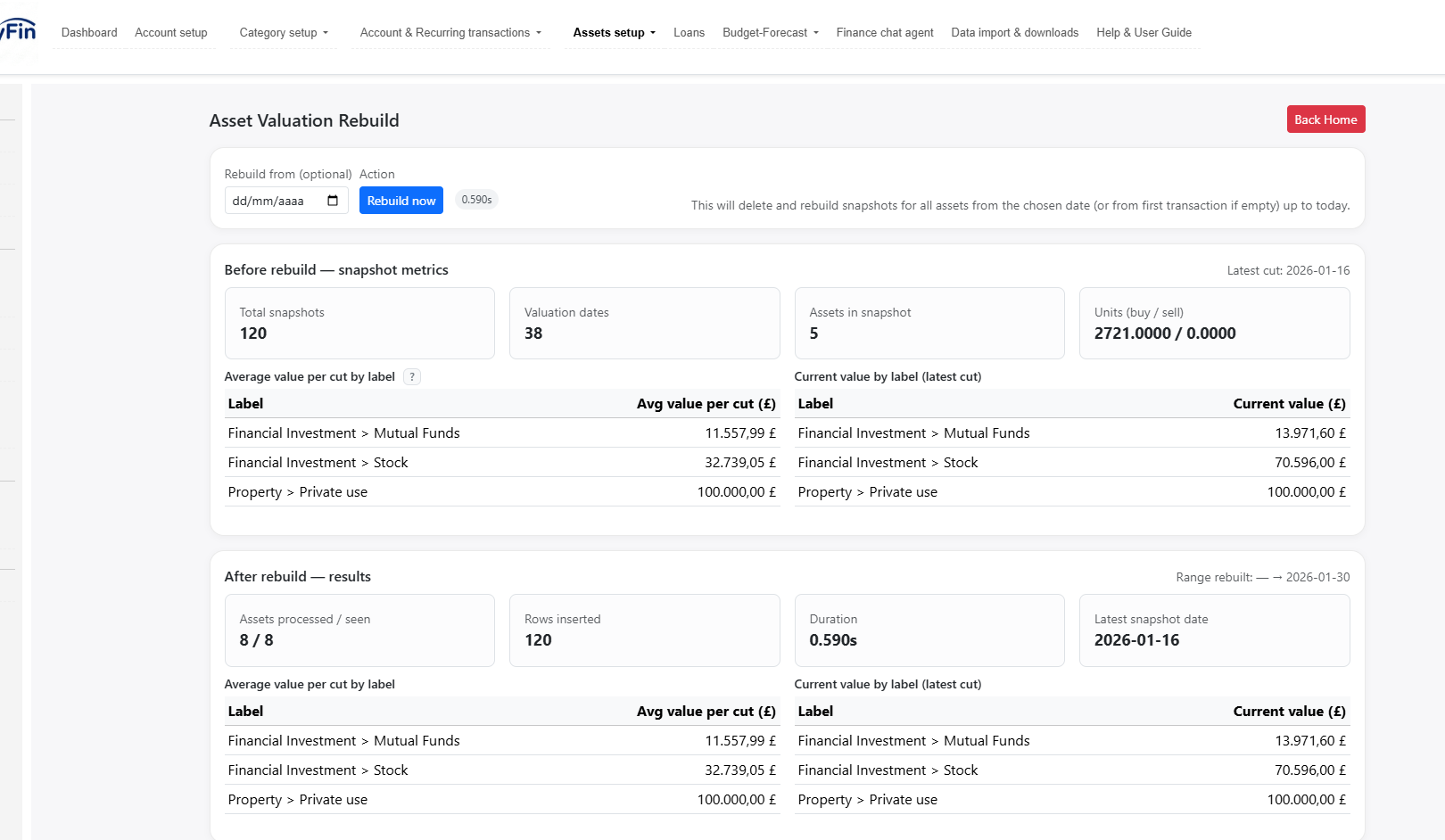
Asset valuation rebuild
If you have introduced many changes in asset price history, you can rebuild from scratch the historical valuation of your whole portfolio since the beginning.
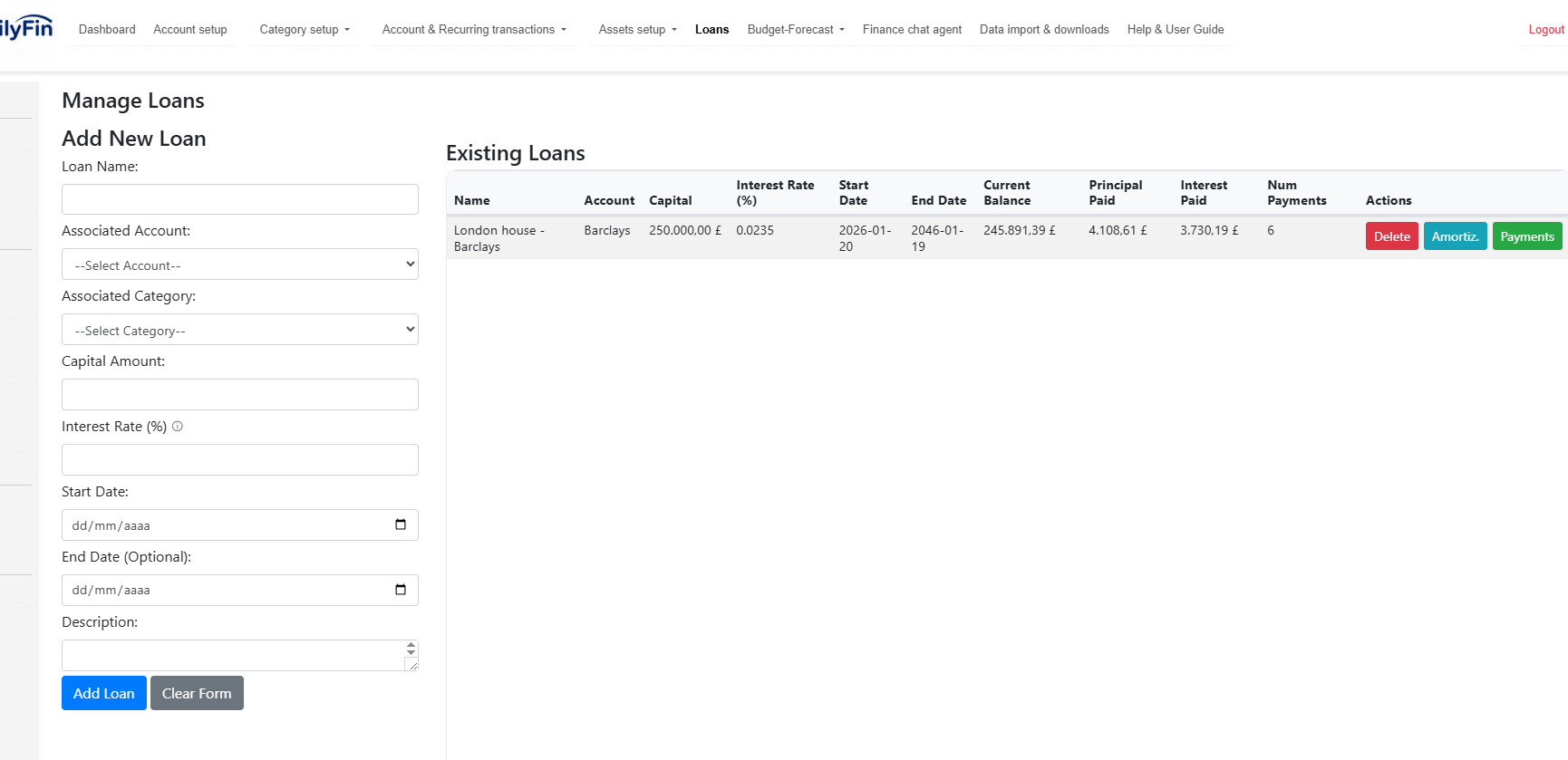
Loans
Define loan data: name, associated bank account, interest rate, begin date, end date, and description. FamilyFin Cloud generates the full amortization plan.
Manage loans
Review key information and KPIs, and navigate to payments/amortization.
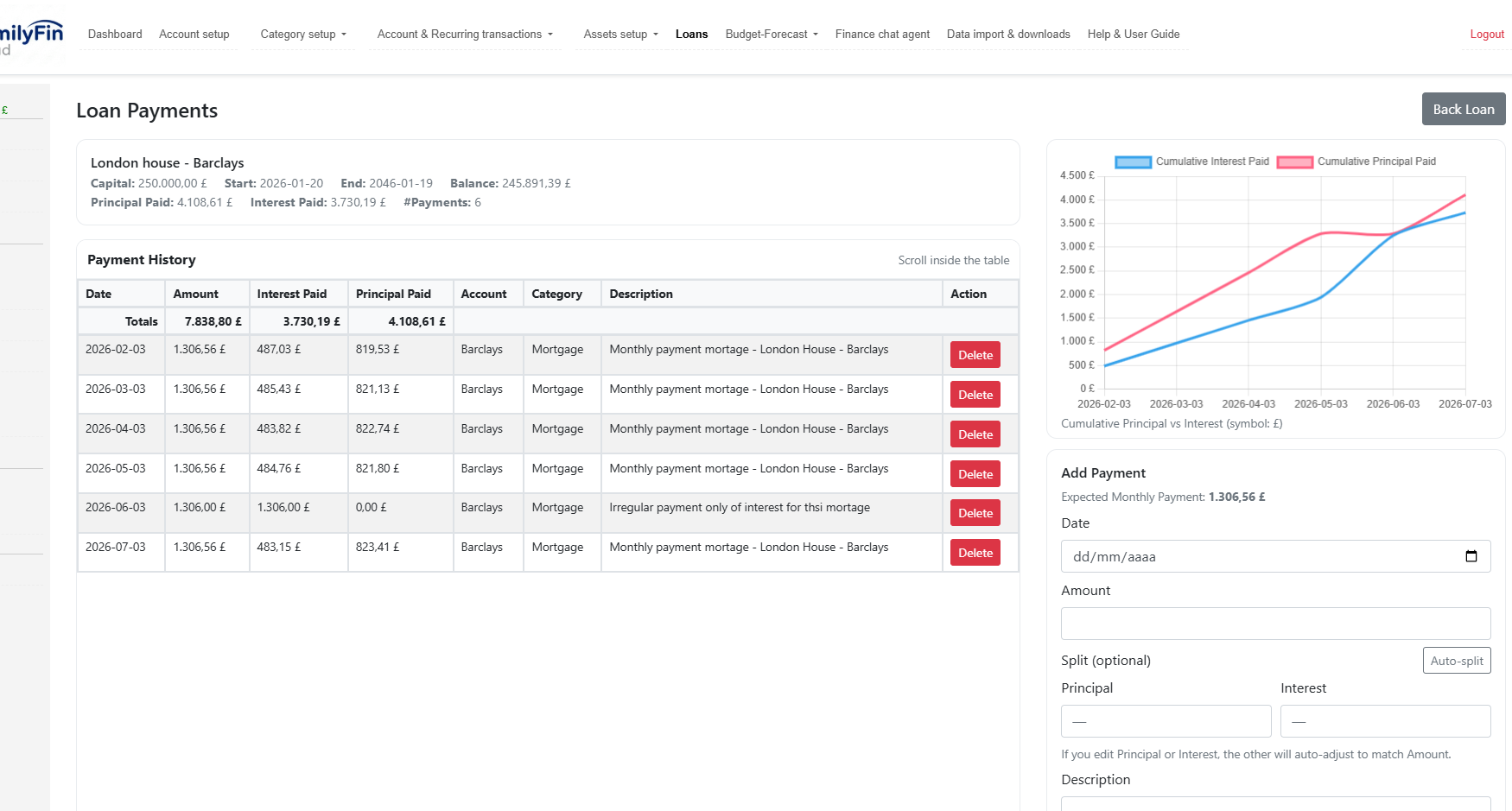
Loan payment
Review payments done, and add new payments. You can edit/delete if needed.
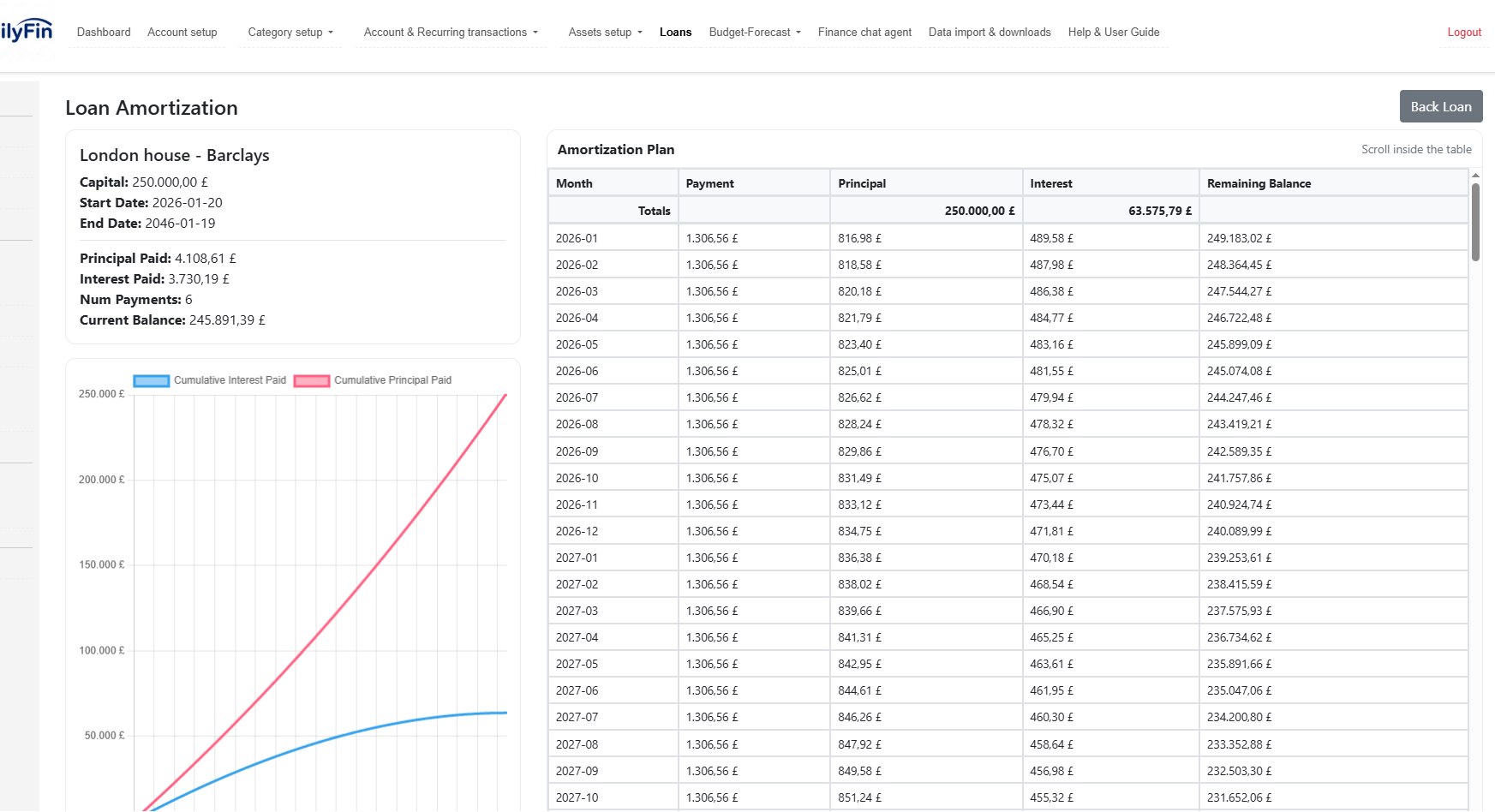
Loan amortization
See the amortization plan and how payments impact principal/interest over time.
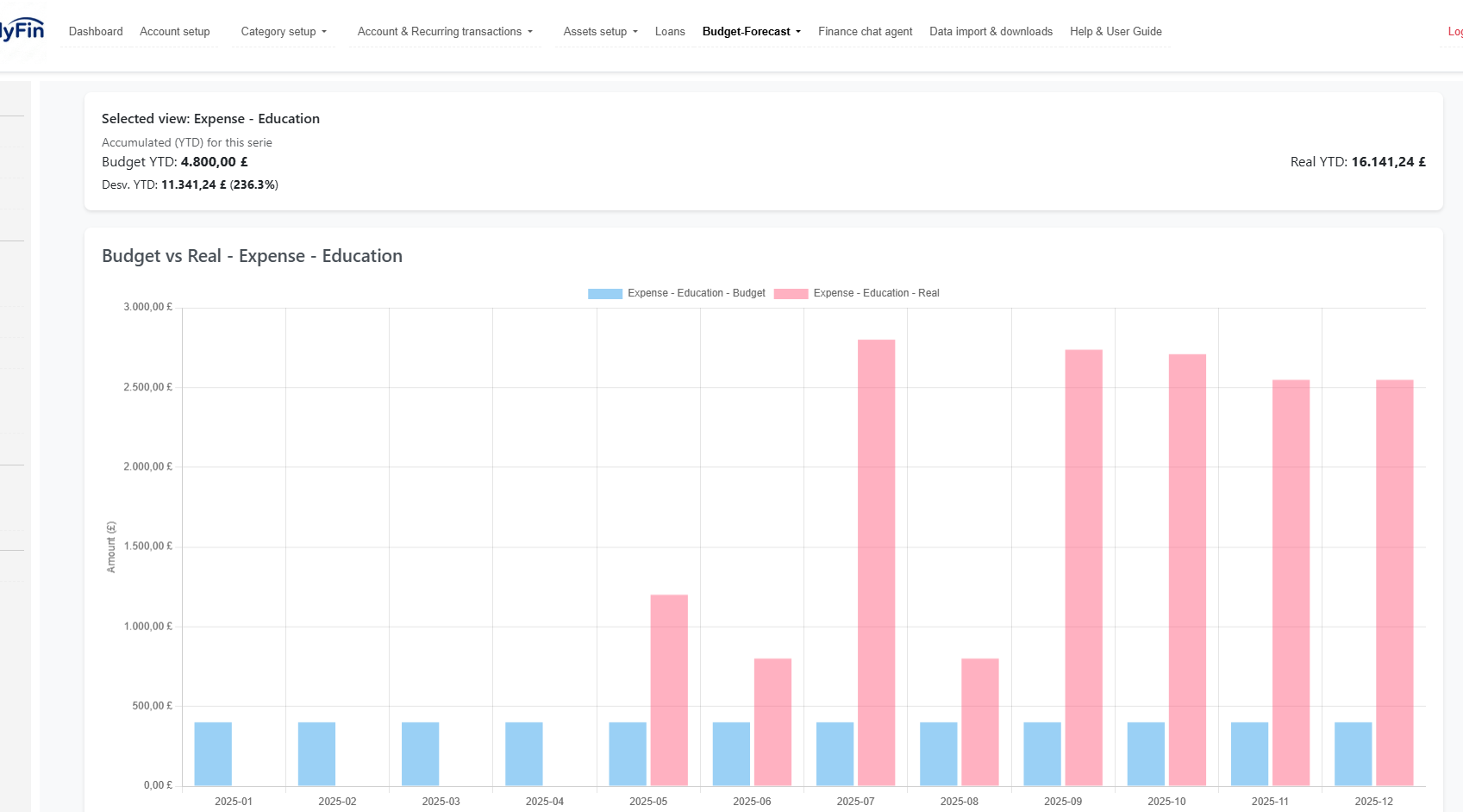
Budget-forecast
Define a 12-month budget, analyze deviations, and simulate future scenarios.
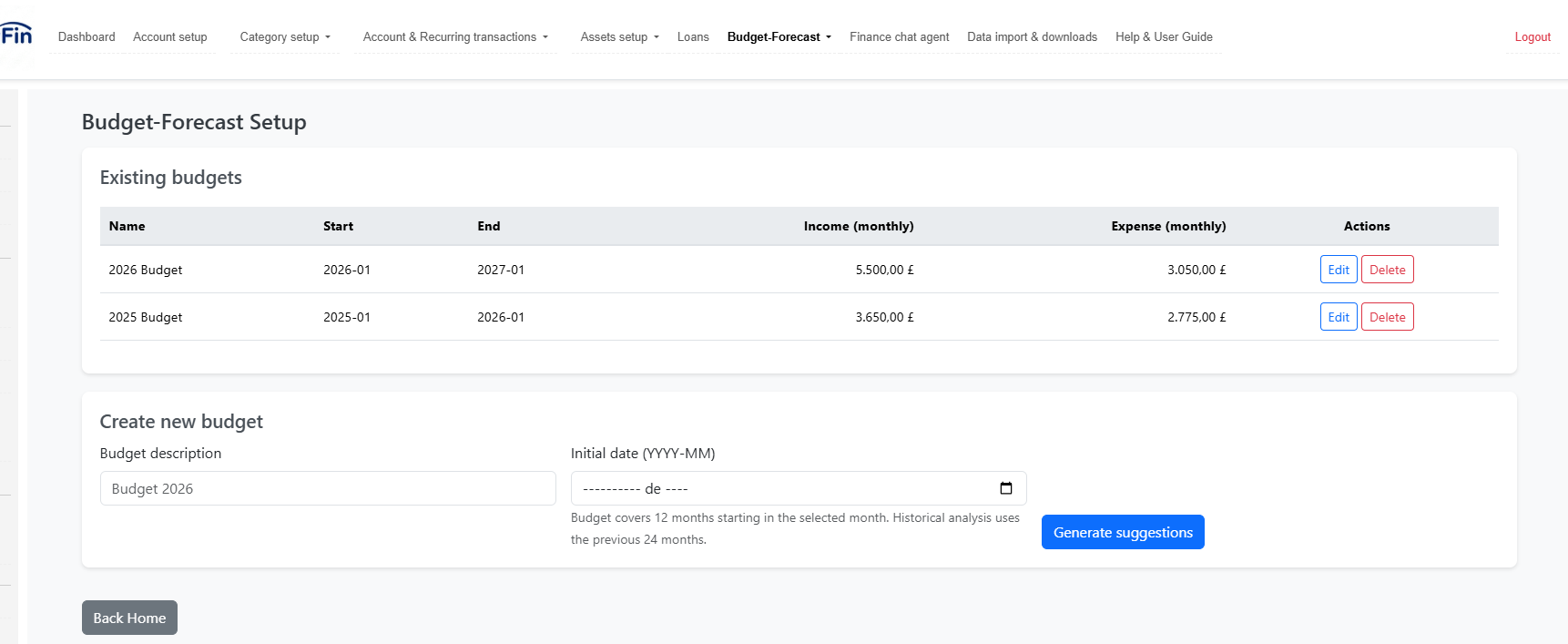
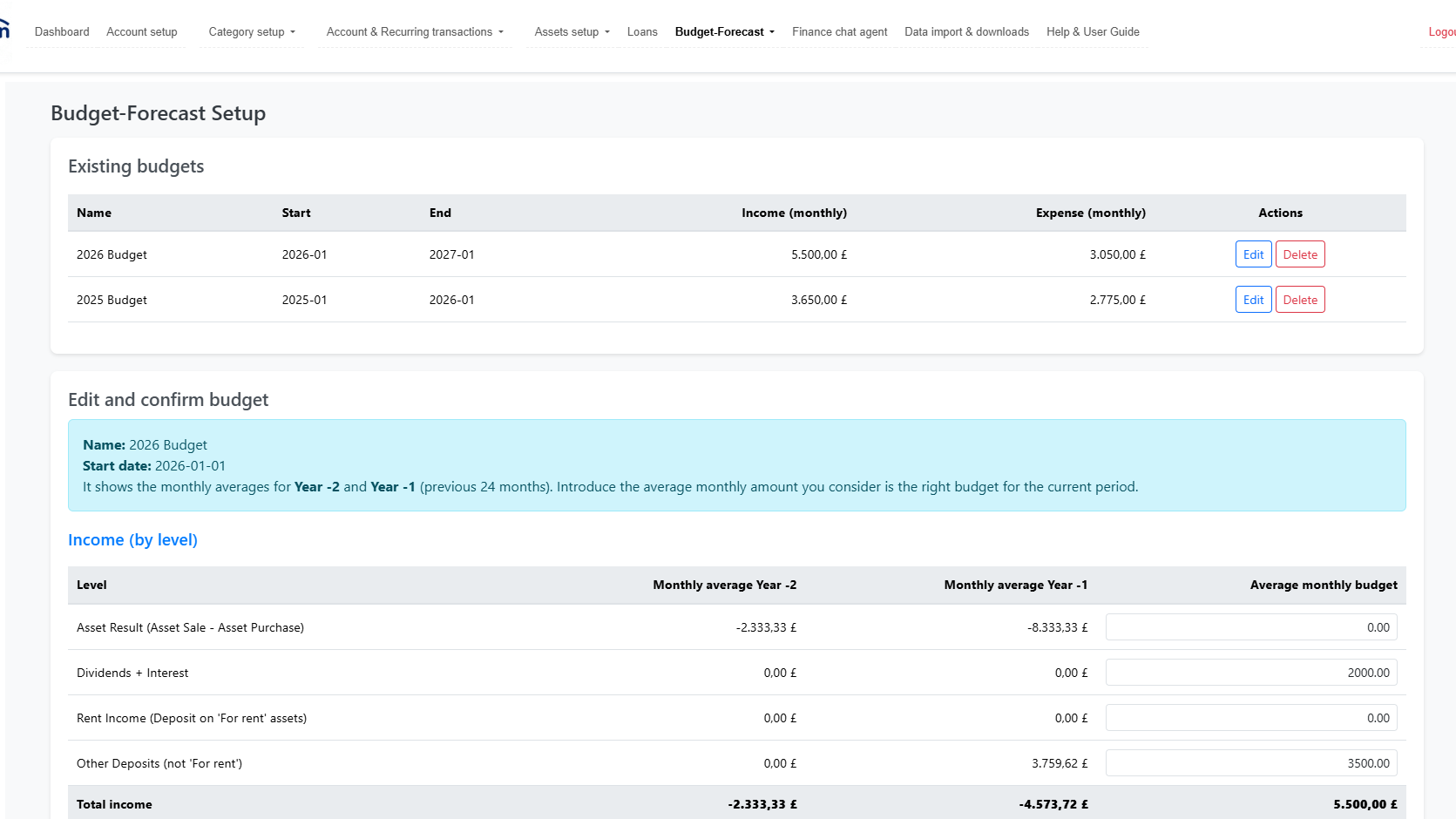
Budget setup
FamilyFin Cloud helps define your monthly budget for any 12-month period, taking into account your income and expenses in the previous months.
Budget analysis
Analyze deviations by category to understand spending patterns and control.
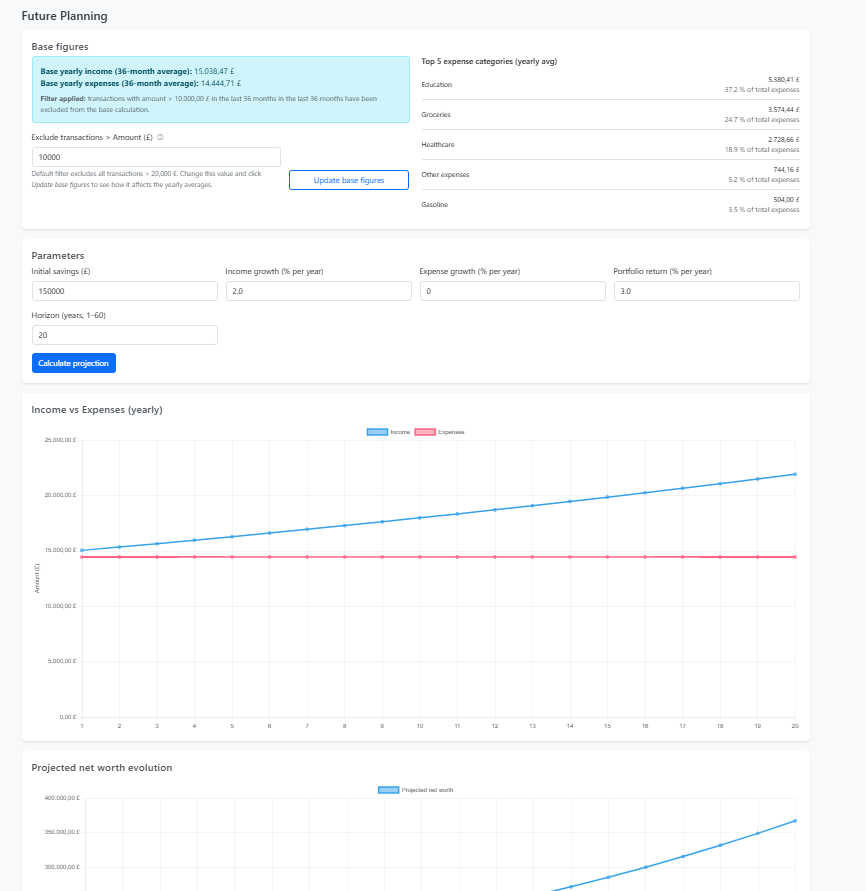
Future planning
Simulate your long-term future (20–30 years) considering savings, future income/expenses, and expected returns.
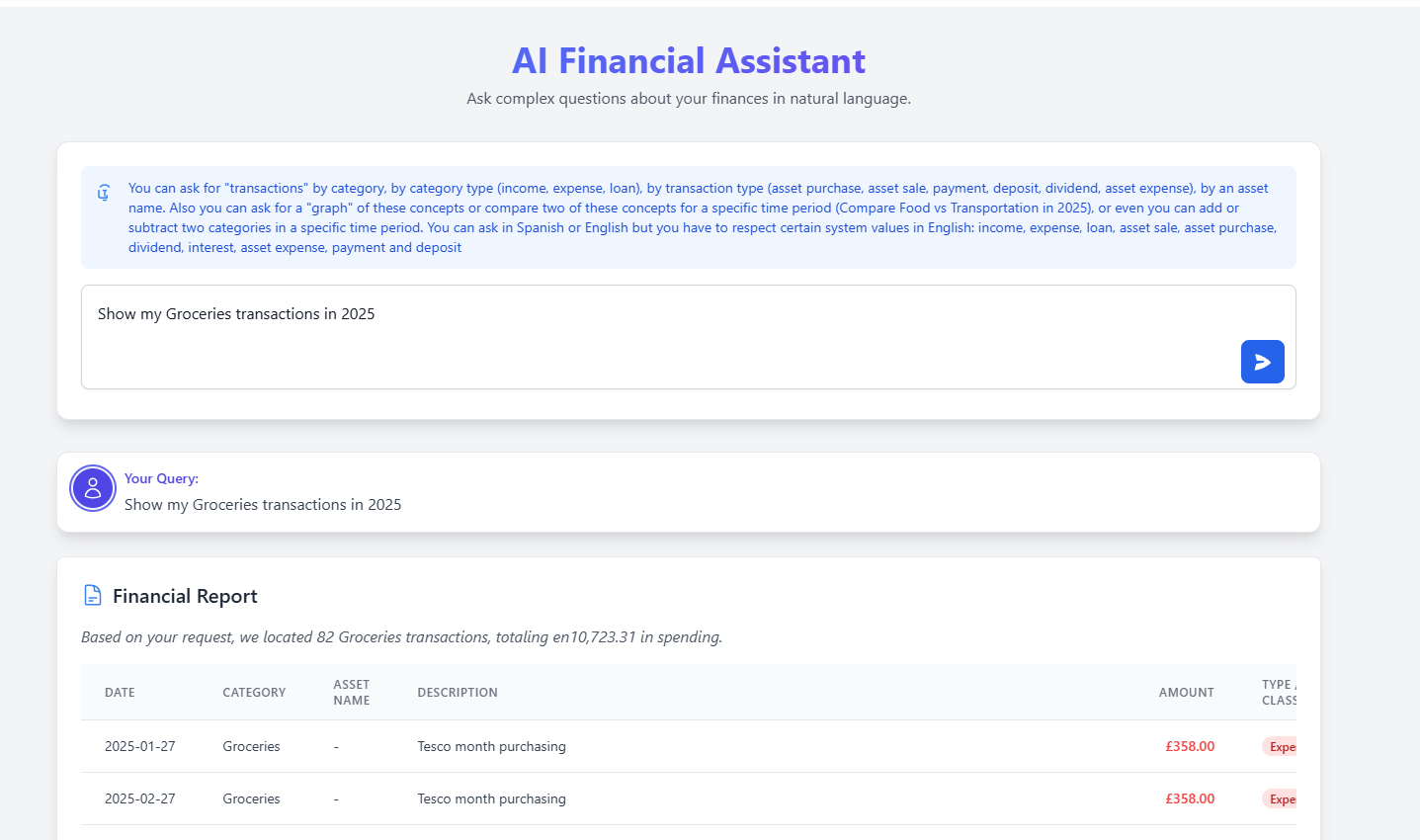
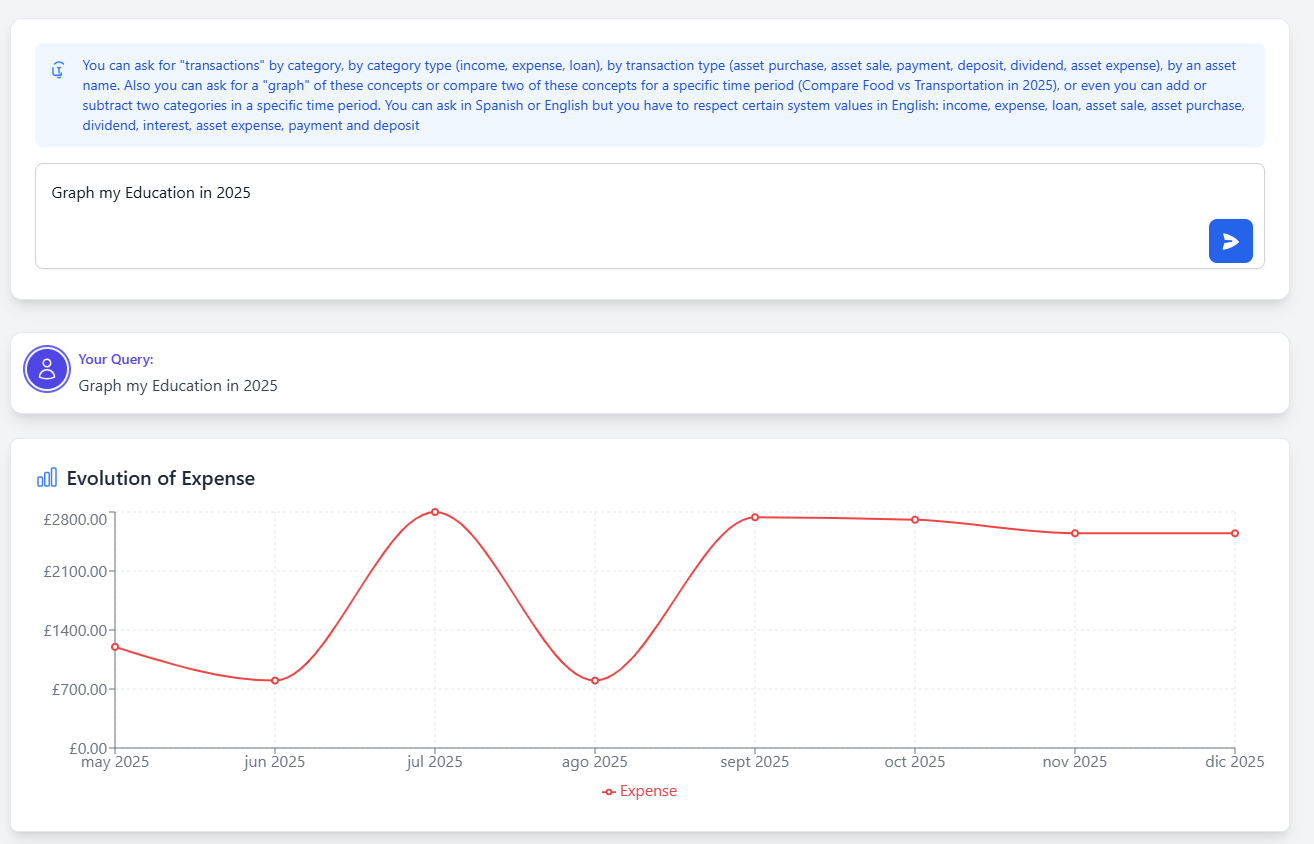
Finance chat agent
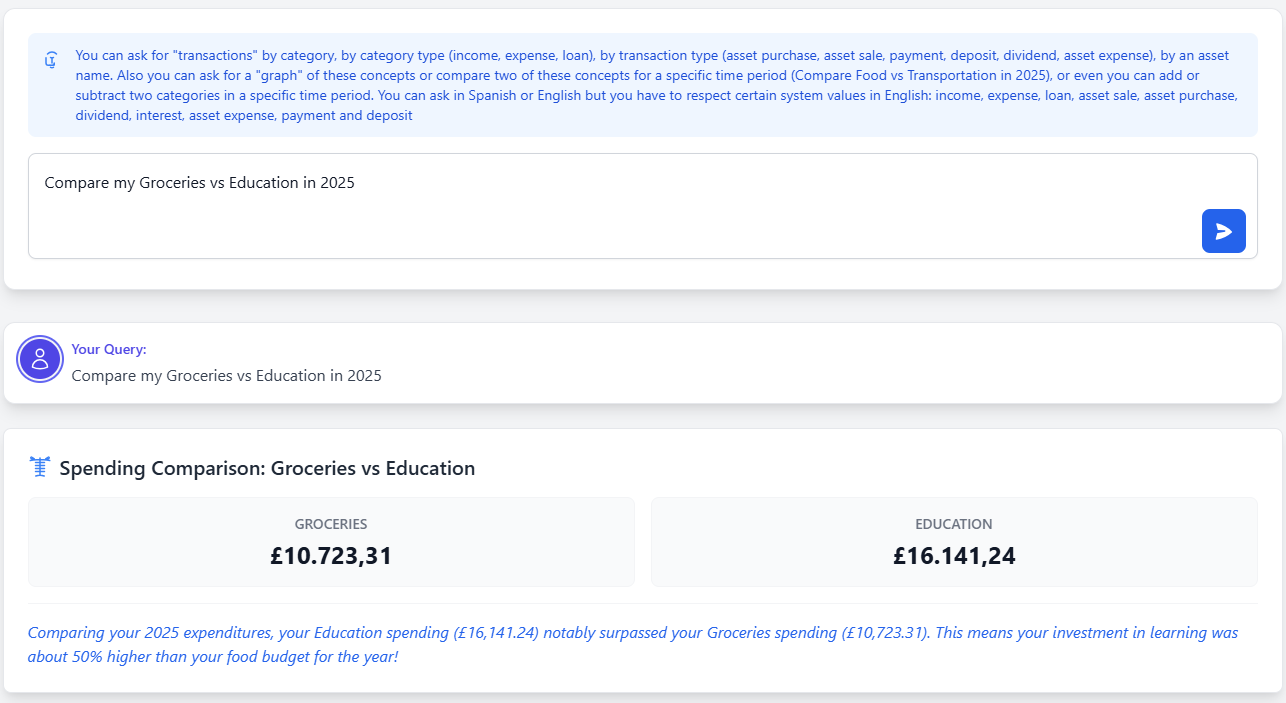
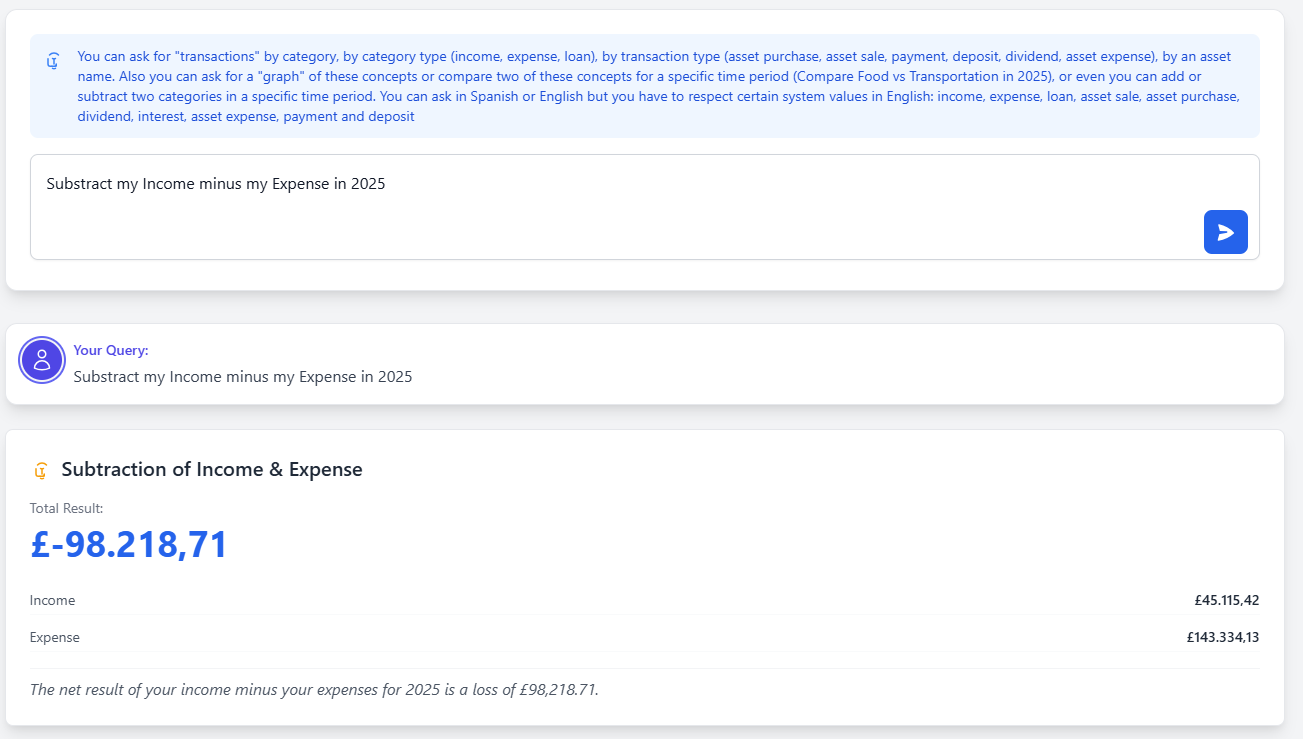
Ask questions in natural language (English or Spanish) about your incomes, expenses and investments.
Data import & downloads
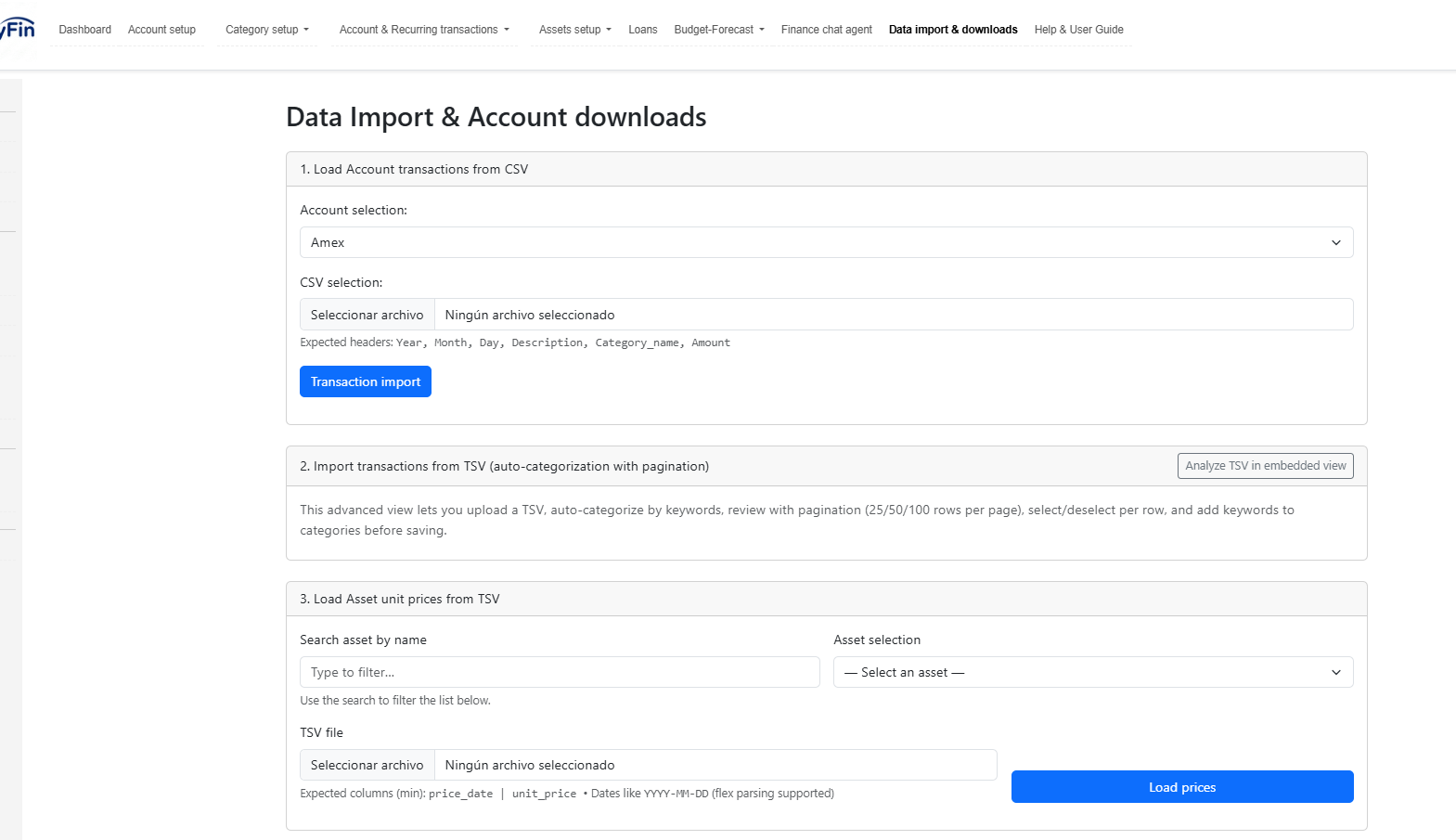
Upload transactions using TSV (Tab-Separated Values) and benefit from clustering-based suggestions to improve categorization over time.
Load account transactions (migration from other systems)
Upload transactions from multiple accounts using TSV to quickly migrate data.
Import transactions (autocategorization)
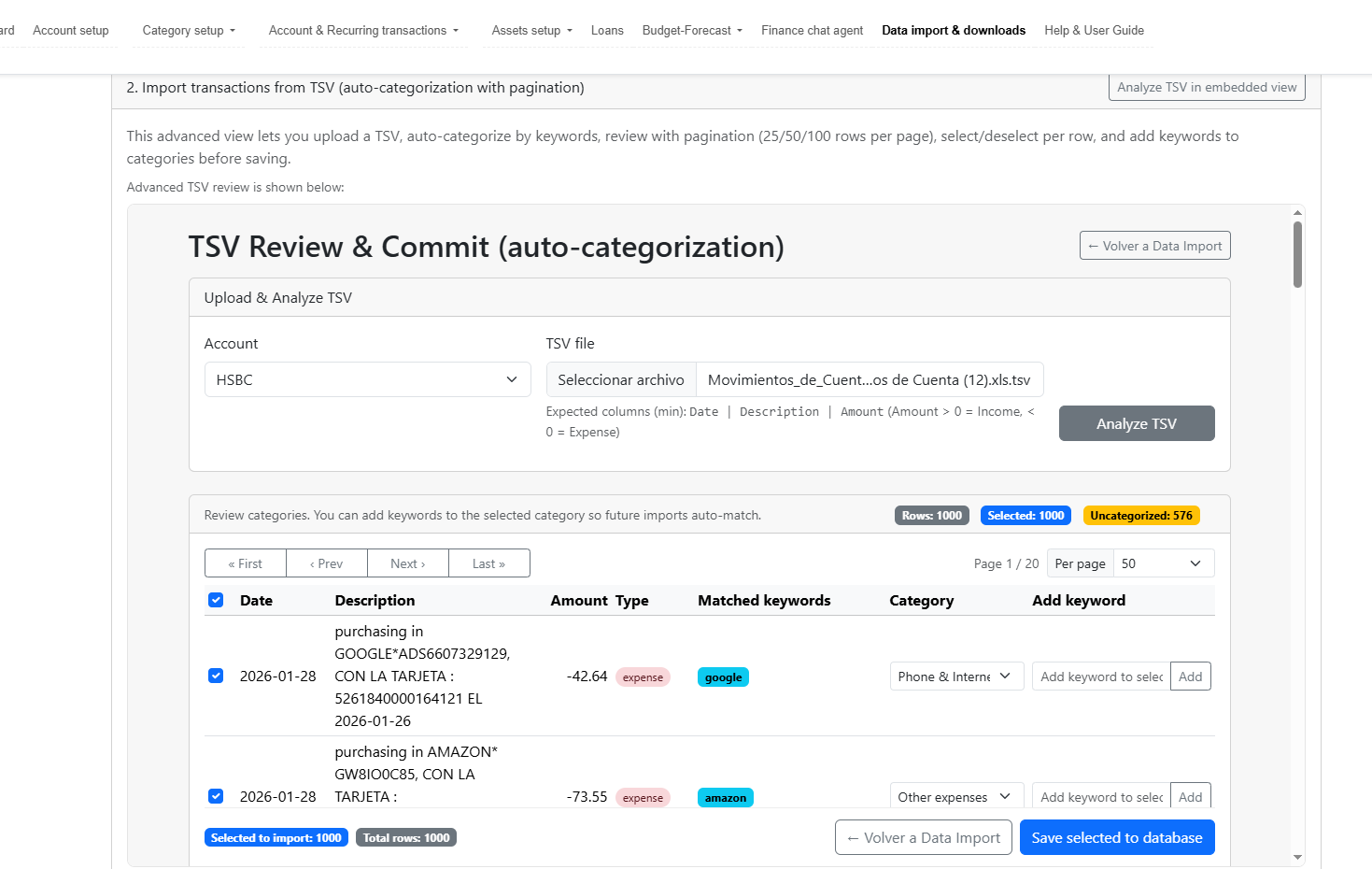
FamilyFin Cloud can suggest categories using clustering. The model learns from your history so future imports improve.
Load account migration
Load transactions from a TSV file with category details.
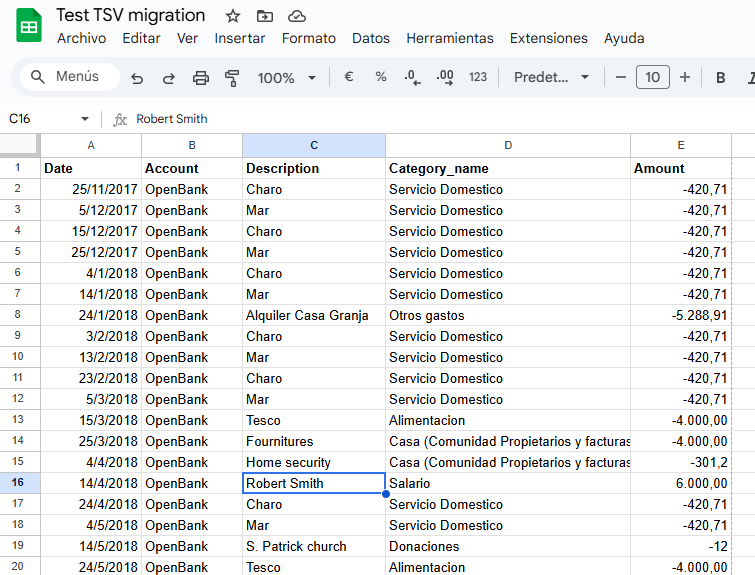
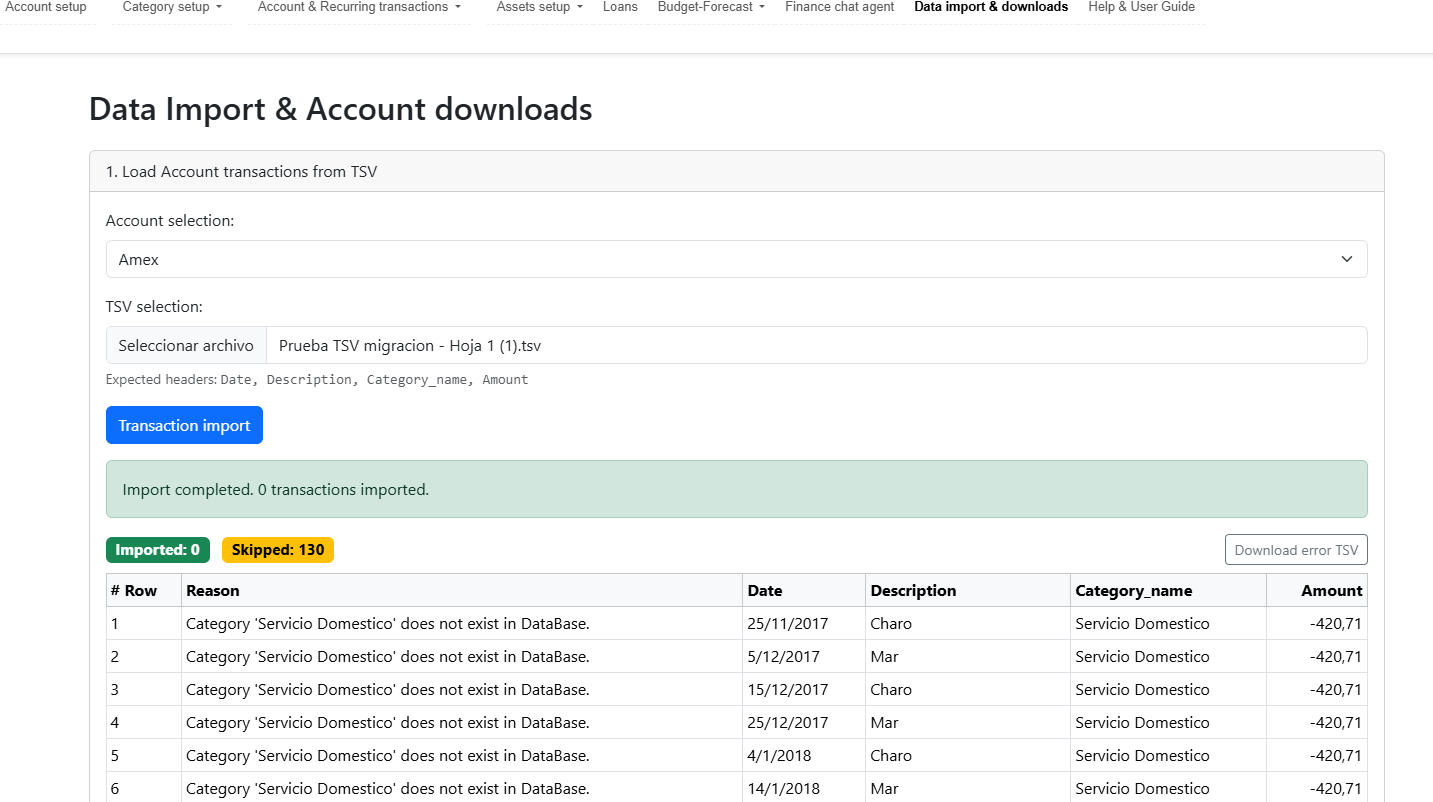
This is the process in order to migrate your transactions from your old personal finance software. In the first image you have a spreadsheet with all your transactions to migrate or load from your bank account: you have to upload a TSV file with these fields. In this process you have to provide a valid category name for the transaction. In the second image, you have the results after the loading indicating the number of transactions migrated, and it also creates a TSV file with all the errors that occurred during the process (mainly due to mislabeling in the category names provided in the TSV )
Screenshots may show sample data for illustration purposes.